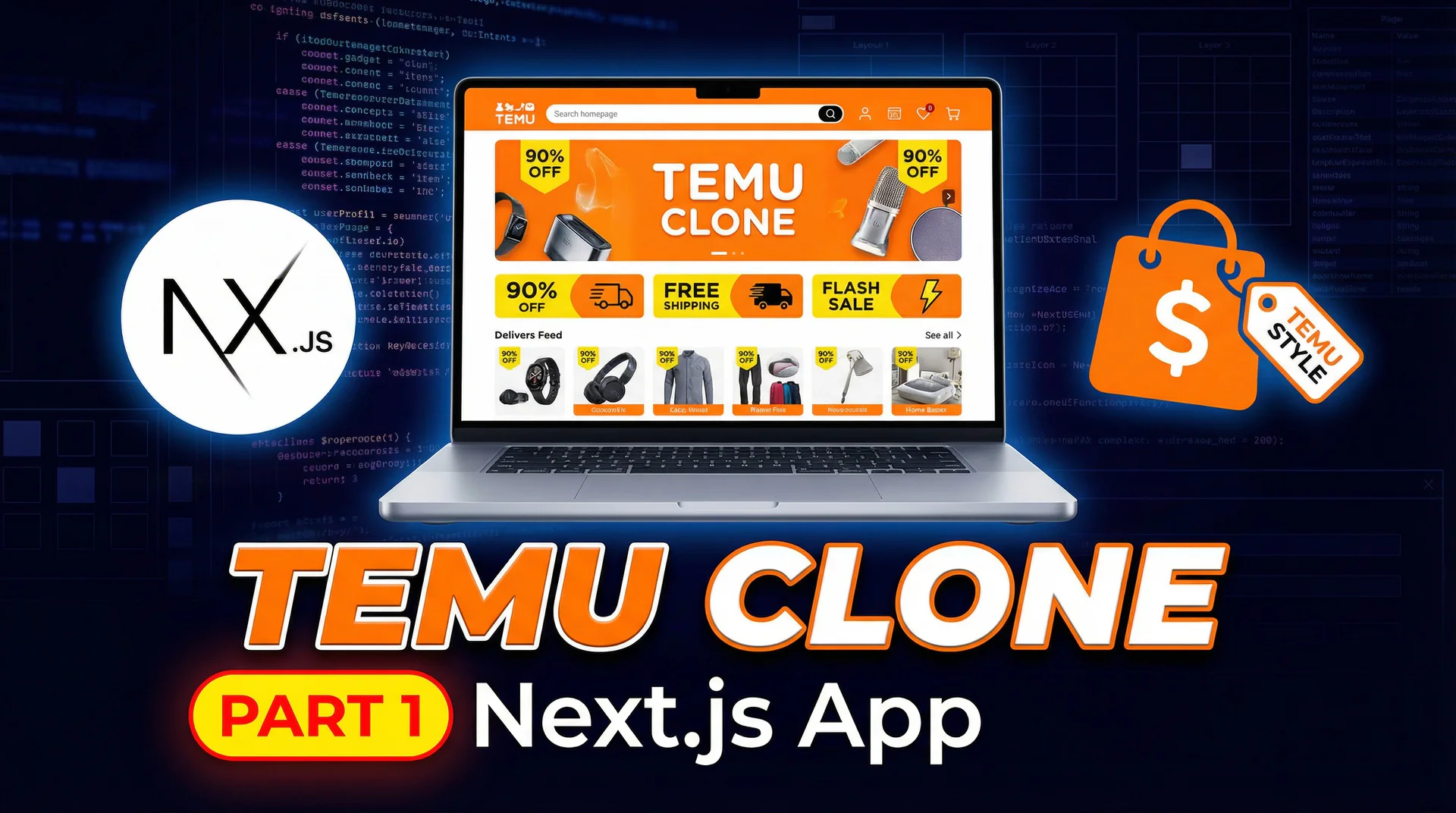
Next JS Tutorial for Beginners | Temu Clone #1
T
Tech & Beyond
December 16, 202528 min read
#next js#next js tutorials#next js tutorial for beginners#tailwind css#shadcn ui#next js ecommerce app
029
Comments (0)
Sign in to join the conversation
Sign in to join the conversation
Introduction
Welcome to this comprehensive Next.js tutorial! In this complete guide, we're building a Temu clone from scratch to learn modern web development with Next.js, Tailwind CSS, and Shadcn UI.
By the end of this tutorial, you'll have built a complete, production-ready e-commerce website with:
What you'll learn:
Prerequisites:
Let's build an amazing e-commerce website together!
Part 1: Project Setup
First, let's create a new Next.js project. Open your terminal and run:
Note: You can also choose "Recommended defaults".
When prompted, choose these options:
Now navigate into the project:
cd temu-webLet's start the development server to make sure everything works:
Open your browser and go to
http://localhost:3000. You should see the default Next.js page. Great! Now let's build our Temu clone.Part 2: Installing and Configuring Shadcn UI
Shadcn UI is a collection of beautifully designed components built with Radix UI and Tailwind CSS. Instead of installing it as a package, we'll add components directly to our project.
Initialize Shadcn UI
Run this command in your terminal:
When prompted, choose these options:
This will create a
components.jsonfile and update your Tailwind configuration.Add Required Components
Now let's add all the Shadcn components we'll need:
Then add a few more:
These commands will create component files in
components/ui/folder.Install Additional Dependencies
We need one more package for the carousel autoplay feature:
Perfect! Now we have everything we need. Let's start building our components!
Part 3: Building the Header Component
The Header is the navigation section at the top of our website. It's one of the most important UI elements.
The Header component is the navigation section at the top of a website. It's one of the most important UI elements because it helps users navigate your site and access key features like search and shopping cart.
In e-commerce websites like Temu, the header typically includes:
Our header will also have a promotional banner at the very top to announce special offers.
Setting Up the Component File
First, let's create our Header component file. In the
componentsfolder, create a new file calledHeader.tsx.Understanding "use client"
The very first line of our component will be:
"use client";Why do we need this?
In Next.js 13 and above, components are Server Components by default. This means they render on the server, which is great for performance and SEO. However, when we need interactivity - like click handlers, state management, or browser APIs - we need to tell Next.js to make it a Client Component.
We're using
"use client"here because while our Header doesn't have state or click handlers yet, we're using icons and UI components that might need client-side features. It's a good practice for navigation components.Importing Dependencies
Next, let's import everything we need:
"use client";

import { ShoppingCart, Search, Menu, User, Heart } from "lucide-react";
import { Input } from "./ui/input";
import { Button } from "./ui/button";
Let's break this down:
Lucide React Icons - We're importing 5 icons:
ShoppingCart- For the cart buttonSearch- For the search barMenu- For mobile menu (hamburger icon)User- For user accountHeart- For wishlist/favoritesShadcn UI Components - We're using:
Input- For the search fieldButton- For icon buttonsThese Shadcn components were added earlier using
npx shadcn@latest add input button.Creating the Component Structure
Now let's create the basic component structure:
export default function Header() {
  return (
    <header className="sticky top-0 z-50 bg-white border-b shadow-sm">
      {/* Our header content will go here */}
    </header>
  );
}
Understanding the Tailwind Classes:
sticky- Makes the header stick to the viewporttop-0- Positions it at the very top (0px from top)z-50- High z-index to ensure it stays above other contentbg-white- White background colorborder-b- Border at the bottomshadow-sm- Small shadow for depthThis combination creates a professional-looking header that stays visible as users scroll.
Adding the Promotional Banner
Let's add a promotional banner at the top of our header:
export default function Header() {
  return (
    <header className="sticky top-0 z-50 bg-white border-b shadow-sm">
      {/* Top Banner */}
      <div className="bg-gradient-to-r from-orange-500 to-pink-500 text-white text-center py-2 text-sm font-medium">
        🎉 Free shipping on orders over $29 • Shop now and save big!
      </div>
    </header>
  );
}
What's happening here:
bg-gradient-to-r- Creates a gradient from left to rightfrom-orange-500 to-pink-500- Orange to pink gradient (Temu's brand colors)text-white- White text for contrasttext-center- Centers the textpy-2- Padding on top and bottom (8px)text-sm- Small text sizefont-medium- Medium font weightThe emoji 🎉 adds a fun, promotional feel to the banner!
Creating the Main Header Container
Below the banner, we'll create a container for the main header content:
export default function Header() {
  return (
    <header className="sticky top-0 z-50 bg-white border-b shadow-sm">
      {/* Top Banner */}
      <div className="bg-gradient-to-r from-orange-500 to-pink-500 text-white text-center py-2 text-sm font-medium">
        🎉 Free shipping on orders over $29 • Shop now and save big!
      </div>

      {/* Main Header */}
      <div className="container mx-auto px-4 py-3">
        <div className="flex items-center justify-between gap-4">
          {/* Content will go here */}
        </div>
      </div>
    </header>
  );
}
Container Classes Explained:
container- Creates a responsive container (max-width based on screen size)mx-auto- Centers the container horizontally (margin-left and margin-right: auto)px-4- Padding on left and right (16px)py-3- Padding on top and bottom (12px)Flex Container:
flex- Enables flexbox layoutitems-center- Vertically centers all child elementsjustify-between- Spreads items apart (logo left, search center, icons right)gap-4- Adds 16px spacing between flex itemsBuilding the Logo Section
Now let's add the logo and mobile menu button:
{
  /* Logo */
}
<div className="flex items-center gap-2">
  <Button variant="ghost" size="icon" className="lg:hidden">
    <Menu className="h-6 w-6" />
  </Button>
  <a href="/" className="text-2xl font-bold text-orange-500">
    Temu
  </a>
</div>;
Breaking it down:
Mobile Menu Button:
Button variant="ghost"- Shadcn button with transparent backgroundsize="icon"- Square button perfect for iconslg:hidden- Only visible on screens smaller than 1024px (mobile/tablet)Menuicon withh-6 w-6- 24px × 24px hamburger menu iconLogo Link:
href="/"- Links to homepagetext-2xl- Large text (24px)font-bold- Bold font weighttext-orange-500- Orange brand colorCreating the Search Bar
The search bar is the centerpiece of our header:
{
  /* Search Bar */
}
<div className="flex-1 max-w-2xl relative">
  <Search className="absolute left-3 top-1/2 transform -translate-y-1/2 text-gray-400 h-5 w-5" />
  <Input
    type="text"
    placeholder="Search for products..."
    className="pl-10 pr-4 py-5 w-full rounded-full border-2 border-gray-200 focus:border-orange-500"
  />
</div>;
Container Classes:
flex-1- Takes up all available space (grows to fill)max-w-2xl- Maximum width of 672px (keeps it from getting too wide)relative- Positions the search icon absolutely within this containerSearch Icon:
absolute- Positions absolutely within the relative containerleft-3- 12px from the left edgetop-1/2- Positioned at 50% from toptransform -translate-y-1/2- Moves up by 50% of its height (perfect vertical centering)text-gray-400- Light gray colorh-5 w-5- 20px × 20px iconInput Field:
type="text"- Standard text inputplaceholder- Hint text for userspl-10- Left padding (40px) to make room for the iconpr-4- Right padding (16px)py-5- Top and bottom padding (20px) for heightw-full- Full width of containerrounded-full- Fully rounded corners (pill shape)border-2- 2px borderborder-gray-200- Light gray borderfocus:border-orange-500- Orange border when focused (clicked)Adding the Action Icons
Now let's add the wishlist, cart, and user icons on the right side:
{
  /* Right Actions */
}
<div className="flex items-center gap-2">
  <Button variant="ghost" size="icon" className="relative">
    <Heart className="h-6 w-6" />
  </Button>
  <Button variant="ghost" size="icon" className="relative">
    <ShoppingCart className="h-6 w-6" />
    <span className="absolute -top-1 -right-1 bg-orange-500 text-white text-xs rounded-full h-5 w-5 flex items-center justify-center">
      0
    </span>
  </Button>
  <Button variant="ghost" size="icon">
    <User className="h-6 w-6" />
  </Button>
</div>;
Container:
flex items-center gap-2- Horizontal layout with centered items and 8px gapWishlist Button:
Shopping Cart Button:
relative- Allows absolute positioning of the badgeabsolute -top-1 -right-1- Positioned slightly outside the button (top-right)bg-orange-500- Orange backgroundtext-white- White texttext-xs- Extra small text (12px)rounded-full- Perfect circleh-5 w-5- 20px × 20px circleflex items-center justify-center- Centers the "0" text inside the circleUser Account Button:
Adding the Navigation Menu
Finally, let's add the category navigation menu below the main header:
{
  /* Navigation Menu */
}
<nav className="hidden lg:flex items-center gap-6 mt-4 text-sm">
  <a href="#" className="hover:text-orange-500 font-medium">
    Home
  </a>
  <a href="#" className="hover:text-orange-500">
    Flash Sale
  </a>
  <a href="#" className="hover:text-orange-500">
    Electronics
  </a>
  <a href="#" className="hover:text-orange-500">
    Fashion
  </a>
  <a href="#" className="hover:text-orange-500">
    Home & Garden
  </a>
  <a href="#" className="hover:text-orange-500">
    Sports
  </a>
  <a href="#" className="hover:text-orange-500">
    Toys & Games
  </a>
  <a href="#" className="hover:text-orange-500">
    Beauty
  </a>
</nav>;
Navigation Classes:
hidden- Hidden by default (mobile screens)lg:flex- Displays as flex on large screens (1024px+)items-center- Vertically centers linksgap-6- 24px spacing between linksmt-4- Margin top (16px) to separate from header abovetext-sm- Small text size (14px)Links:
hover:text-orange-500- Orange color on hoverfont-medium- Home link is slightly bolder (emphasis)Complete Header Component Code
Here's our complete Header component:
"use client";

import { ShoppingCart, Search, Menu, User, Heart } from "lucide-react";
import { Input } from "./ui/input";
import { Button } from "./ui/button";

export default function Header() {
  return (
    <header className="sticky top-0 z-50 bg-white border-b shadow-sm">
      {/* Top Banner */}
      <div className="bg-gradient-to-r from-orange-500 to-pink-500 text-white text-center py-2 text-sm font-medium">
        🎉 Free shipping on orders over $29 • Shop now and save big!
      </div>

      {/* Main Header */}
      <div className="container mx-auto px-4 py-3">
        <div className="flex items-center justify-between gap-4">
          {/* Logo */}
          <div className="flex items-center gap-2">
            <Button variant="ghost" size="icon" className="lg:hidden">
              <Menu className="h-6 w-6" />
            </Button>
            <a href="/" className="text-2xl font-bold text-orange-500">
              Temu
            </a>
          </div>

          {/* Search Bar */}
          <div className="flex-1 max-w-2xl relative">
            <Search className="absolute left-3 top-1/2 transform -translate-y-1/2 text-gray-400 h-5 w-5" />
            <Input
              type="text"
              placeholder="Search for products..."
              className="pl-10 pr-4 py-5 w-full rounded-full border-2 border-gray-200 focus:border-orange-500"
            />
          </div>

          {/* Right Actions */}
          <div className="flex items-center gap-2">
            <Button variant="ghost" size="icon" className="relative">
              <Heart className="h-6 w-6" />
            </Button>
            <Button variant="ghost" size="icon" className="relative">
              <ShoppingCart className="h-6 w-6" />
              <span className="absolute -top-1 -right-1 bg-orange-500 text-white text-xs rounded-full h-5 w-5 flex items-center justify-center">
                0
              </span>
            </Button>
            <Button variant="ghost" size="icon">
              <User className="h-6 w-6" />
            </Button>
          </div>
        </div>

        {/* Navigation Menu */}
        <nav className="hidden lg:flex items-center gap-6 mt-4 text-sm">
          <a href="#" className="hover:text-orange-500 font-medium">
            Home
          </a>
          <a href="#" className="hover:text-orange-500">
            Flash Sale
          </a>
          <a href="#" className="hover:text-orange-500">
            Electronics
          </a>
          <a href="#" className="hover:text-orange-500">
            Fashion
          </a>
          <a href="#" className="hover:text-orange-500">
            Home & Garden
          </a>
          <a href="#" className="hover:text-orange-500">
            Sports
          </a>
          <a href="#" className="hover:text-orange-500">
            Toys & Games
          </a>
          <a href="#" className="hover:text-orange-500">
            Beauty
          </a>
        </nav>
      </div>
    </header>
  );
}
Part 4: Building the Product Card Component
Product cards are essential for e-commerce sites. Let's create a reusable ProductCard component.
Create
components/ProductCard.tsx:"use client"; import Image from "next/image"; import { Card, CardContent } from "./ui/card"; import { Badge } from "./ui/badge"; import { Heart, Star } from "lucide-react"; import { Button } from "./ui/button"; interface ProductCardProps { id: number; title: string; image: string; price: number; originalPrice: number; rating: number; reviews: number; discount: number; sold: number; } export default function ProductCard({ title, image, price, originalPrice, rating, reviews, discount, sold, }: ProductCardProps) { return ( <Card className="group overflow-hidden cursor-pointer hover:shadow-lg transition-all duration-300 border-gray-200"> <CardContent className="p-0"> {/* Image Container */} <div className="relative aspect-square overflow-hidden bg-gray-100"> <Image src={image} alt={title} fill className="object-cover group-hover:scale-105 transition-transform duration-300" /> {discount > 0 && ( <Badge className="absolute top-2 left-2 bg-red-500 hover:bg-red-600"> -{discount}% </Badge> )} <Button variant="ghost" size="icon" className="absolute top-2 right-2 bg-white/80 hover:bg-white" > <Heart className="h-4 w-4" /> </Button> </div> {/* Product Info */} <div className="p-3 space-y-2"> <h3 className="text-sm font-medium line-clamp-2 min-h-[40px]"> {title} </h3> {/* Price */} <div className="flex items-baseline gap-2"> <span className="text-xl font-bold text-orange-500"> ${price.toFixed(2)} </span> <span className="text-sm text-gray-400 line-through"> ${originalPrice.toFixed(2)} </span> </div> {/* Rating and Sold */} <div className="flex items-center justify-between text-xs text-gray-600"> <div className="flex items-center gap-1"> <Star className="h-3 w-3 fill-yellow-400 text-yellow-400" /> <span className="font-medium">{rating.toFixed(1)}</span> <span>({reviews})</span> </div> <span>{sold}+ sold</span> </div> </div> </CardContent> </Card> ); }Key Features:
fillpropgroupandgroup-hoverPart 5: Building the Category Card Component
Category cards help users navigate product categories quickly.
Create
components/CategoryCard.tsx:import Image from "next/image"; interface CategoryCardProps { name: string; image: string; icon: string; } export default function CategoryCard({ name, image, icon }: CategoryCardProps) { return ( <div className="flex flex-col items-center gap-2 cursor-pointer group"> <div className="w-20 h-20 rounded-full bg-gradient-to-br from-orange-100 to-pink-100 flex items-center justify-center overflow-hidden group-hover:shadow-md transition-all duration-300 border-2 border-transparent group-hover:border-orange-300"> <span className="text-3xl">{icon}</span> </div> <span className="text-xs text-center font-medium text-gray-700 group-hover:text-orange-500"> {name} </span> </div> ); }Key Features:
Part 6: Building the Hero Carousel Component
The hero carousel showcases promotional content at the top of the page.
Create
components/HeroCarousel.tsx:"use client"; import * as React from "react"; import { Carousel, CarouselContent, CarouselItem, CarouselNext, CarouselPrevious, } from "./ui/carousel"; import Autoplay from "embla-carousel-autoplay"; export default function HeroCarousel() { const plugin = React.useRef( Autoplay({ delay: 4000, stopOnInteraction: true }) ); const slides = [ { id: 1, title: "Super Deals", subtitle: "Up to 90% OFF", color: "from-orange-400 to-pink-500", }, { id: 2, title: "New Arrivals", subtitle: "Shop the Latest Trends", color: "from-purple-400 to-blue-500", }, { id: 3, title: "Flash Sale", subtitle: "Limited Time Offers", color: "from-green-400 to-teal-500", }, ]; return ( <Carousel plugins={[plugin.current]} className="w-full" onMouseEnter={plugin.current.stop} onMouseLeave={plugin.current.reset} > <CarouselContent> {slides.map((slide) => ( <CarouselItem key={slide.id}> <div className={`relative h-[300px] md:h-[400px] rounded-xl overflow-hidden bg-gradient-to-r ${slide.color}`} > <div className="container mx-auto h-full flex items-center px-8"> <div className="text-white"> <h2 className="text-4xl md:text-6xl font-bold mb-4"> {slide.title} </h2> <p className="text-xl md:text-2xl mb-6">{slide.subtitle}</p> <button className="bg-white text-gray-900 px-8 py-3 rounded-full font-semibold hover:bg-gray-100 transition-colors"> Shop Now </button> </div> </div> </div> </CarouselItem> ))} </CarouselContent> <CarouselPrevious className="left-4" /> <CarouselNext className="right-4" /> </Carousel> ); }Key Features:
Part 7: Building the Footer Component
Every website needs a professional footer with links and information.
Create
components/Footer.tsx:import { Facebook, Instagram, Twitter, Youtube } from "lucide-react"; import { Separator } from "./ui/separator"; export default function Footer() { return ( <footer className="bg-gray-50 border-t mt-16"> <div className="container mx-auto px-4 py-12"> <div className="grid grid-cols-1 md:grid-cols-2 lg:grid-cols-4 gap-8"> {/* Company Info */} <div> <h3 className="text-2xl font-bold text-orange-500 mb-4">Temu</h3> <p className="text-sm text-gray-600 mb-4"> Your one-stop shop for everything you need at unbeatable prices. </p> <div className="flex gap-3"> <a href="#" className="w-8 h-8 bg-gray-200 rounded-full flex items-center justify-center hover:bg-orange-500 hover:text-white transition-colors" > <Facebook className="h-4 w-4" /> </a> <a href="#" className="w-8 h-8 bg-gray-200 rounded-full flex items-center justify-center hover:bg-orange-500 hover:text-white transition-colors" > <Instagram className="h-4 w-4" /> </a> <a href="#" className="w-8 h-8 bg-gray-200 rounded-full flex items-center justify-center hover:bg-orange-500 hover:text-white transition-colors" > <Twitter className="h-4 w-4" /> </a> <a href="#" className="w-8 h-8 bg-gray-200 rounded-full flex items-center justify-center hover:bg-orange-500 hover:text-white transition-colors" > <Youtube className="h-4 w-4" /> </a> </div> </div> {/* Customer Service */} <div> <h4 className="font-semibold mb-4">Customer Service</h4> <ul className="space-y-2 text-sm text-gray-600"> <li> <a href="#" className="hover:text-orange-500"> Help Center </a> </li> <li> <a href="#" className="hover:text-orange-500"> Track Order </a> </li> <li> <a href="#" className="hover:text-orange-500"> Returns & Refunds </a> </li> <li> <a href="#" className="hover:text-orange-500"> Shipping Info </a> </li> <li> <a href="#" className="hover:text-orange-500"> Contact Us </a> </li> </ul> </div> {/* Shop */} <div> <h4 className="font-semibold mb-4">Shop</h4> <ul className="space-y-2 text-sm text-gray-600"> <li> <a href="#" className="hover:text-orange-500"> Flash Sales </a> </li> <li> <a href="#" className="hover:text-orange-500"> New Arrivals </a> </li> <li> <a href="#" className="hover:text-orange-500"> Best Sellers </a> </li> <li> <a href="#" className="hover:text-orange-500"> Clearance </a> </li> <li> <a href="#" className="hover:text-orange-500"> Gift Cards </a> </li> </ul> </div> {/* About */} <div> <h4 className="font-semibold mb-4">About</h4> <ul className="space-y-2 text-sm text-gray-600"> <li> <a href="#" className="hover:text-orange-500"> About Us </a> </li> <li> <a href="#" className="hover:text-orange-500"> Careers </a> </li> <li> <a href="#" className="hover:text-orange-500"> Privacy Policy </a> </li> <li> <a href="#" className="hover:text-orange-500"> Terms of Service </a> </li> <li> <a href="#" className="hover:text-orange-500"> Blog </a> </li> </ul> </div> </div> <Separator className="my-8" /> <div className="text-center text-sm text-gray-600"> <p> © 2024 Temu Clone. All rights reserved. This is for educational purposes only. </p> </div> </div> </footer> ); }Key Features:
Part 8: Building the Main Homepage
Now let's put everything together in the main page!
Update
app/page.tsxwith this complete code:import Header from "@/components/Header"; import Footer from "@/components/Footer"; import HeroCarousel from "@/components/HeroCarousel"; import CategoryCard from "@/components/CategoryCard"; import ProductCard from "@/components/ProductCard"; import { Separator } from "@/components/ui/separator"; // Sample product data const products = [ { id: 1, title: "Wireless Bluetooth Earbuds with Charging Case - HD Sound Quality", image: "https://images.unsplash.com/photo-1590658268037-6bf12165a8df?w=400&h=400&fit=crop", price: 12.99, originalPrice: 49.99, rating: 4.8, reviews: 2341, discount: 74, sold: 15000, }, { id: 2, title: "Smart Watch Fitness Tracker with Heart Rate Monitor", image: "https://images.unsplash.com/photo-1523275335684-37898b6baf30?w=400&h=400&fit=crop", price: 19.99, originalPrice: 89.99, rating: 4.6, reviews: 1823, discount: 78, sold: 12000, }, { id: 3, title: "LED Desk Lamp with USB Charging Port - Adjustable Brightness", image: "https://images.unsplash.com/photo-1507473885765-e6ed057f782c?w=400&h=400&fit=crop", price: 15.49, originalPrice: 59.99, rating: 4.7, reviews: 956, discount: 74, sold: 8500, }, { id: 4, title: "Portable Phone Stand Holder - Universal Adjustable Desktop Mount", image: "https://images.unsplash.com/photo-1556656793-08538906a9f8?w=400&h=400&fit=crop", price: 7.99, originalPrice: 24.99, rating: 4.5, reviews: 3421, discount: 68, sold: 25000, }, { id: 5, title: "Stainless Steel Water Bottle - Insulated 32oz", image: "https://images.unsplash.com/photo-1602143407151-7111542de6e8?w=400&h=400&fit=crop", price: 14.99, originalPrice: 39.99, rating: 4.9, reviews: 1234, discount: 63, sold: 9800, }, { id: 6, title: "Wireless Keyboard and Mouse Combo - Ultra Slim Design", image: "https://images.unsplash.com/photo-1587829741301-dc798b83add3?w=400&h=400&fit=crop", price: 22.99, originalPrice: 79.99, rating: 4.6, reviews: 876, discount: 71, sold: 6700, }, { id: 7, title: "HD Webcam 1080p with Microphone - Perfect for Video Calls", image: "https://images.unsplash.com/photo-1585792180666-f7347c490ee2?w=400&h=400&fit=crop", price: 18.99, originalPrice: 69.99, rating: 4.4, reviews: 1567, discount: 73, sold: 11200, }, { id: 8, title: "Car Phone Mount - Dashboard Windshield Holder", image: "https://images.unsplash.com/photo-1526738549149-8e07eca6c147?w=400&h=400&fit=crop", price: 9.99, originalPrice: 29.99, rating: 4.7, reviews: 2890, discount: 67, sold: 18500, }, ]; const categories = [ { name: "Electronics", icon: "📱", image: "" }, { name: "Fashion", icon: "👗", image: "" }, { name: "Home", icon: "🏠", image: "" }, { name: "Beauty", icon: "💄", image: "" }, { name: "Sports", icon: "⚽", image: "" }, { name: "Toys", icon: "🧸", image: "" }, { name: "Books", icon: "📚", image: "" }, { name: "Garden", icon: "🌱", image: "" }, { name: "Pets", icon: "🐾", image: "" }, { name: "Automotive", icon: "🚗", image: "" }, ]; export default function Home() { return ( <div className="min-h-screen bg-gray-50"> <Header /> <main> {/* Hero Section */} <section className="container mx-auto px-4 py-6"> <HeroCarousel /> </section> {/* Categories Section */} <section className="container mx-auto px-4 py-8"> <h2 className="text-2xl font-bold mb-6">Shop by Category</h2> <div className="grid grid-cols-5 md:grid-cols-10 gap-4"> {categories.map((category) => ( <CategoryCard key={category.name} name={category.name} icon={category.icon} image={category.image} /> ))} </div> </section> <Separator className="my-8" /> {/* Flash Sale Section */} <section className="container mx-auto px-4 py-8"> <div className="flex items-center justify-between mb-6"> <div> <h2 className="text-2xl font-bold">⚡ Flash Sale</h2> <p className="text-gray-600 text-sm"> Limited time offers - Don't miss out! </p> </div> <a href="#" className="text-orange-500 font-medium hover:underline"> View All → </a> </div> <div className="grid grid-cols-2 md:grid-cols-3 lg:grid-cols-4 xl:grid-cols-5 gap-4"> {products.slice(0, 5).map((product) => ( <ProductCard key={product.id} {...product} /> ))} </div> </section> <Separator className="my-8" /> {/* New Arrivals Section */} <section className="container mx-auto px-4 py-8"> <div className="flex items-center justify-between mb-6"> <div> <h2 className="text-2xl font-bold">🆕 New Arrivals</h2> <p className="text-gray-600 text-sm"> Check out the latest products </p> </div> <a href="#" className="text-orange-500 font-medium hover:underline"> View All → </a> </div> <div className="grid grid-cols-2 md:grid-cols-3 lg:grid-cols-4 xl:grid-cols-5 gap-4"> {products.map((product) => ( <ProductCard key={product.id} {...product} /> ))} </div> </section> {/* Popular Products Section */} <section className="container mx-auto px-4 py-8"> <div className="flex items-center justify-between mb-6"> <div> <h2 className="text-2xl font-bold">🔥 Popular Products</h2> <p className="text-gray-600 text-sm">Most loved by customers</p> </div> <a href="#" className="text-orange-500 font-medium hover:underline"> View All → </a> </div> <div className="grid grid-cols-2 md:grid-cols-3 lg:grid-cols-4 xl:grid-cols-5 gap-4"> {products.slice(0, 5).map((product) => ( <ProductCard key={product.id} {...product} /> ))} </div> </section> </main> <Footer /> </div> ); }Understanding the Homepage Structure:
Part 9: Updating the Layout
Let's update the metadata in
app/layout.tsx:export const metadata: Metadata = { title: "Temu Clone - Shop for Everything at Unbeatable Prices", description: "Educational Temu clone built with Next.js, Tailwind CSS, and Shadcn UI. Explore amazing deals on electronics, fashion, home goods, and more.", };This improves SEO and gives your site a professional title and description.
What We've Built
In this comprehensive tutorial, we've built a complete e-commerce website! Here's everything we covered:
✅ Project Setup - Created a Next.js 16 app with TypeScript and Tailwind CSS
✅ Shadcn UI Integration - Installed and configured Shadcn UI components
✅ Header Component - Sticky navigation with search, cart, and user icons
✅ Product Cards - Reusable cards with images, ratings, and prices
✅ Category Cards - Icon-based category navigation
✅ Hero Carousel - Auto-playing promotional slides
✅ Footer Component - Professional footer with links and social media
✅ Homepage Layout - Complete page with multiple product sections
✅ TypeScript Interfaces - Type-safe component props
✅ Responsive Design - Mobile-first approach with Tailwind breakpoints
✅ Component Composition - Building complex UIs from simple components
Testing Your Application
Now let's see your complete website in action! In your terminal, run:
Open your browser and navigate to
http://localhost:3000You should see:
Try these interactions:
Complete Project Structure
Your project should now have this structure:
Key Concepts Learned
1. Component Architecture
You learned how to break down a complex UI into smaller, reusable components. Each component has a single responsibility.
2. TypeScript for Type Safety
Using interfaces ensures your components receive the correct props and catches errors at compile time.
3. Tailwind CSS Utilities
Instead of writing custom CSS, we used utility classes for rapid development:
flex,gridfor layoutshover:,md:,lg:for responsive statesbg-,text-,border-for styling4. Shadcn UI Benefits
Pre-built, accessible components that we can customize with Tailwind classes. No need to build from scratch!
5. Next.js Features
Responsive Behavior
Your website is fully responsive across all devices:
Mobile (< 768px):
Tablet (768px - 1023px):
Desktop (≥ 1024px):
Next Steps & Enhancements
Now that you have a complete Temu clone, here are some ideas to extend your learning:
Beginner Level:
Intermediate Level:
Advanced Level:
Key Takeaways
Common Issues & Troubleshooting
Issue: "Module not found" errors
Solution: Make sure all dependencies are installed:
Issue: Shadcn components not found
Solution: Re-add the components:
Issue: Images not loading
Solution: The images use Unsplash URLs. Make sure you're connected to the internet. Alternatively, replace with local images in the
/publicfolder.Issue: Carousel not auto-playing
Solution: Ensure
embla-carousel-autoplayis installed:Issue: Tailwind styles not applying
Solution: Clear the Next.js cache and restart:
rm -rf .next
npm run dev
Issue: TypeScript errors
Solution: Make sure all component files have the correct interfaces and imports. Check that you're using the exact code from this tutorial.
Challenge Exercises
Now that you have a complete project, try these challenges to reinforce your learning:
Easy Challenges:
Medium Challenges:
Hard Challenges:
Performance Tips
Your application is already optimized, but here are some best practices we followed:
✅ Next.js Image Component: Automatically optimizes images
✅ Server Components: Used where possible for better performance
✅ Code Splitting: Each component is imported separately
✅ Lazy Loading: Images load as they come into view
✅ Minimal JavaScript: Only client components where needed
Deployment
Ready to share your project with the world? Deploy to Vercel (free):
git init git add . git commit -m "Complete Temu clone" git branch -M main git remote add origin YOUR_GITHUB_URL git push -u origin mainYour site will be live in minutes!
Additional Resources
Official Documentation:
What's Next?
Congratulations! 🎉 You've successfully built a complete, production-ready e-commerce website from scratch!
You now have:
Future Tutorial Ideas:
In future parts of this series, we could cover:
Final Thoughts
Building real-world projects is the best way to learn web development. You didn't just follow a tutorial - you built a complete, modern e-commerce website using professional tools and best practices.
The skills you learned here are:
Keep building, keep learning, and most importantly, keep coding!
Get Help
If you run into any issues:
Remember: Every developer gets stuck. It's part of the learning process!
Share Your Project
Built something awesome? Share it!
Congratulations on completing this tutorial! 🎉
You've learned Next.js, Tailwind CSS, Shadcn UI, and TypeScript by building a real-world project. These are valuable, in-demand skills that will serve you well in your development career.
Keep building amazing things!
Happy coding! 🚀